
How to Troubleshoot OBS Plugin Installation Errors
A practical troubleshooting guide for OBS plugin installation errors, missing plugins, version mismatches, and folder placement problems.
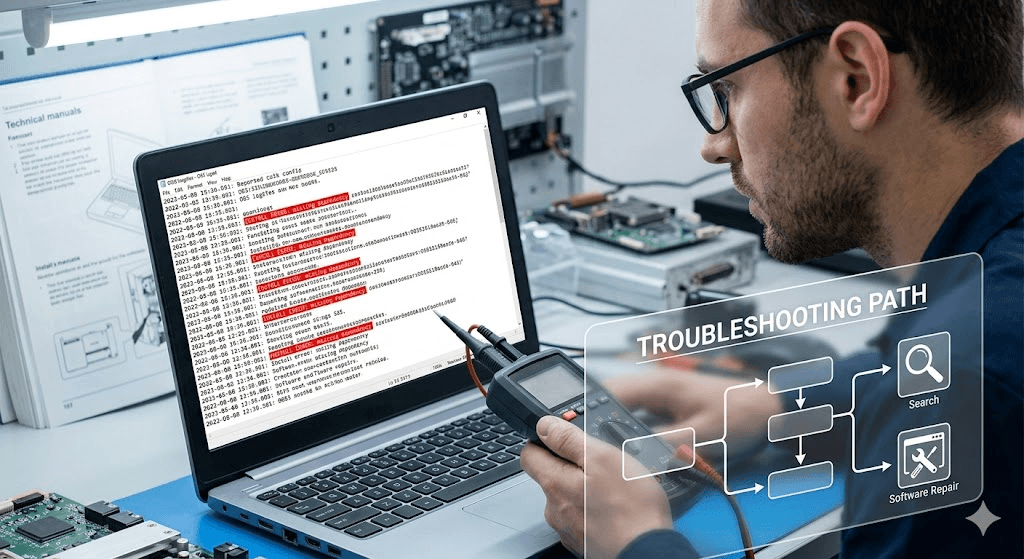
Common Signs of OBS Plugin Installation Errors
Most OBS plugin install errors show up as missing menu items, plugin load failures, or features that stopped appearing after an install or update.
- The plugin does not appear in OBS
- A menu entry is missing
- The feature does not load or does nothing when selected
- OBS shows launch warnings
- The plugin worked before but stopped after an update
First Checks to Run When an OBS Plugin Install Fails
- 1Confirm the OBS version on the machine you are troubleshooting.
- 2Confirm the plugin version or build you installed.
- 3Confirm the correct install location for that OBS environment.
- 4Check whether old plugin files are still present from a previous version.
- 5Restart OBS fully instead of assuming it reloaded the plugin on its own.
- 6Test in a calm environment before going live.
If the machine is already stable enough to keep a service or stream running, do not troubleshoot mid-service or mid-stream. Keep the production moving and return to the plugin problem afterward.
Version and Compatibility Problems
One of the most common causes of a failed install is a version mismatch. The plugin build may not support the OBS version on that machine, or the plugin may require a newer build after OBS changed.
Before changing more files, verify compatibility first. That single check often explains why a plugin is missing or why OBS shows a new warning after startup.
OBS Plugin Folder and File Placement Problems
Some installs fail because the files were placed in the wrong folder, copied into the wrong OBS environment, or mixed with leftover files from an older version. That is especially common on systems with custom paths or portable installs.
If you need help with path verification, use how to find the correct OBS plugin folder.
When to Remove and Reinstall an OBS Plugin Cleanly
If the plugin still fails after the first checks, a clean reinstall is often safer than piling more guesses on top of a broken state. Close OBS, remove the plugin files from the correct location, verify the right build, then reinstall cleanly.
For users who want a clearer way to review compatibility, install notes, and plugin status from one place, OBS Plugin Installer makes that troubleshooting workflow easier to follow. If the install succeeds but breaks later, continue to what to do when an OBS plugin stops working after an update.
Related Resources
Explore more pages about OBS control, mobile production workflows, and livestream operations.
How to install OBS plugins
Review the original install steps to spot where the plugin setup may have failed.
Read pageHow to manage OBS plugins
Track plugin state and maintenance tasks more clearly across a working OBS system.
Read pageOBS plugin compatibility
Version checks are one of the first places to look when an install fails.
Read pageNeed a Cleaner Troubleshooting Workflow?
OBS Plugin Installer gives users one place to review plugin compatibility, install notes, and plugin state before and after installation changes.